Resize images
Cloudflare Images supports variants that specify how images should be resized for different use cases. You can configure up to 20 variants.
Each variant has properties including the width and height of resized images.
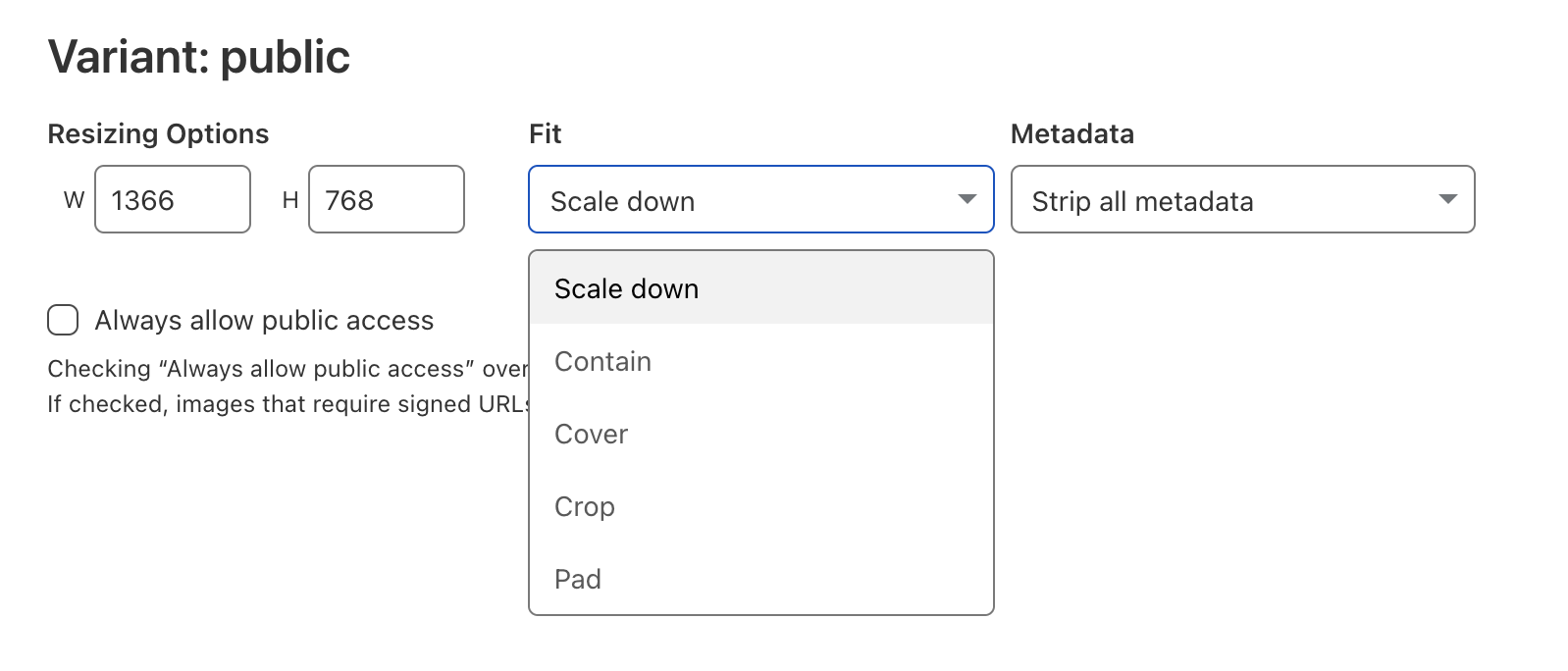
The Fit property describes how the width and height dimensions should be interpreted. The chart below describes each of the options:
| Fit Options | Behavior |
|---|---|
| Scale down | Image will be shrunk in size to fully fit within the given width or height, but will not be enlarged. |
| Contain | Image will be resized (shrunk or enlarged) to be as large as possible within the given width or height while preserving the aspect ratio. |
| Cover | Image will be resized to exactly fill the entire area specified by width and height, and will be cropped if necessary. |
| Crop | Image will be shrunk and cropped to fit within the area specified by width and height. The image will not be enlarged. For images smaller than the given dimensions it is the same as scale-down. For images larger than the given dimensions, it is the same as cover. |
| Pad | Image will be resized (shrunk or enlarged) to be as large as possible within the given width or height while preserving the aspect ratio, and the extra area will be filled with a background color (white by default). |
You can also create variants via API:
curl -X POST "https://api.cloudflare.com/client/v4/accounts/<ACCOUNT_ID>/images/v1/variants" \ -H "Authorization: Bearer <API_TOKEN>" \ -H "Content-Type: application/json" \ --data '{"id":"<NAME_OF_THE_VARIANT>","options":{"fit":"scale-down","metadata":"none","width":1366,"height":768},"neverRequireSignedURLs":true}
Flexible variants
If you need more flexibility when creating variants than the Cloudflare Images dashboard allows, you can use the API to create flexible variants. Flexible variants allow you to create variants with dynamic resizing. This option is not enabled by default. To activate flexible variants for your account:
curl -X PATCH https://api.cloudflare.com/client/v4/accounts/<ACCOUNT_ID>/images/v1/config \ -H "Authorization: Bearer <API_TOKEN>" \ -H "Content-Type: application/json" \ --data '{"flexible_variants": true}'
Once activated it is possible to use resizing parameters on any Cloudflare Image. For example:
https://imagedelivery.net/<ACCOUNT_HASH>/<IMAGE_ID/w=400,sharpen=3Note that flexible variants cannot be used for images that require a signed delivery URL .
Supported properties
Flexible variants supports the following properties:
width=xorw=x- Specifies maximum width of the image in pixels. Exact behavior depends on the
fitmode (described below).
- Specifies maximum width of the image in pixels. Exact behavior depends on the
height=xorh=x- Specifies maximum height of the image in pixels. Exact behavior depends on the
fitmode (described below).
- Specifies maximum height of the image in pixels. Exact behavior depends on the
dpr=x- Device Pixel Ratio. Default is
1. Multiplier forwidth/heightthat makes it easier to specify higher-DPI sizes in<img srcset>.
- Device Pixel Ratio. Default is
fitAffects interpretation of
widthandheight. All resizing modes preserve aspect ratio. Available modes are:fit=scale-down- Image will be shrunk in size to fully fit within the given
widthorheight, but will not be enlarged.
- Image will be shrunk in size to fully fit within the given
fit=contain- Image will be resized (shrunk or enlarged) to be as large as possible within the given
widthorheightwhile preserving the aspect ratio.
- Image will be resized (shrunk or enlarged) to be as large as possible within the given
fit=cover- Image will be resized to exactly fill the entire area specified by
widthandheight, and will be cropped if necessary.
- Image will be resized to exactly fill the entire area specified by
fit=crop- Image will be shrunk and cropped to fit within the area specified by
widthandheight. The image will not be enlarged. For images smaller than the given dimensions, it is the same asscale-down. For images larger than the given dimensions, it is the same ascover.
- Image will be shrunk and cropped to fit within the area specified by
fit=pad- Image will be resized (shrunk or enlarged) to be as large as possible within the given
widthorheightwhile preserving the aspect ratio, and the extra area will be filled with abackgroundcolor (white by default). Transparent background may be very expensive, and it is better to usefit=containand CSSobject-fit: containproperty instead.
- Image will be resized (shrunk or enlarged) to be as large as possible within the given
gravityorgSpecifies the most important side or point in the image that should not be cropped off when cropping with
fit=cover.gravity=auto- The point will be guessed by looking for areas that stand out the most from image background.
gravity=sideandgravity=XxY- A side (
"left","right","top","bottom") or coordinates specified on a scale from0.0(top or left) to1.0(bottom or right),0.5being the center. The X and Y coordinates are separated by lowercasex. For example,0x1means left and bottom,0.5x0.5is the center,0.5x0.33is a point in the top third of the image.
- A side (
sharpen=x- Specifies strength of sharpening filter. The value is a floating-point number between
0(no sharpening) and10(maximum).1is a recommended value.
- Specifies strength of sharpening filter. The value is a floating-point number between
blur=x- Blur radius between
1(slight blur) and250(maximum). Be aware that you cannot use this option to reliably obscure image content, because savvy users can modify an image’s URL and remove the blur option. Use Workers to control which options can be set.
- Blur radius between
trim- Four numbers in pixels separated by a semicolon; in the form of
top;right;bottom;left; ex:20;30;20;0
- Four numbers in pixels separated by a semicolon; in the form of
metadataControls amount of invisible metadata (EXIF data) that should be preserved. Color profiles and EXIF rotation are applied to the image even if the metadata is discarded. Note that if the Polish feature is enabled, all metadata may have been removed already and this option may have no effect.
metadata=keep- Preserve most of the image metadata (including GPS location) when possible.
metadata=copyright- Discard all metadata except EXIF copyright tag. This is the default for JPEG images.
metadata=none- Discard all invisible metadata.
anim=false- Reduces animations to still images. This setting is recommended to avoid large animated GIF files, or flashing images.
rotate- Number of degrees (
90,180, or270) to rotate the image by.widthandheightoptions refer to axes after rotation.
- Number of degrees (
background- Background color to add underneath the image. Applies only to images with transparency (for example, PNG). Accepts any CSS color, such as
#RRGGBBandrgba(…).
- Background color to add underneath the image. Applies only to images with transparency (for example, PNG). Accepts any CSS color, such as
contrast- Increase contrast by a factor. A value of
1.0equals no change, a value of0.5equals low contrast, and a value of2.0equals high contrast.0is ignored.
- Increase contrast by a factor. A value of
brightness- Increase brightness by a factor. A value of
1.0equals no change, a value of0.5equals half brightness, and a value of2.0equals twice as bright.0is ignored.
- Increase brightness by a factor. A value of
gamma- Increase exposure by a factor. A value of
1.0equals no change, a value of0.5darkens the image, and a value of2.0lightens the image.0is ignored.
- Increase exposure by a factor. A value of
Unsupported properties
Flexible variants do not support the following properties:
qualityformat